9 Best Scheduling Software That Integrates with QuickBooks (2026)

You've got crews booked three weeks out, a change order this morning, and a bookkeeper retyping invoices by hand. That's why contractors look for scheduling software that integrates with QuickBooks.
I pulled official pricing pages for all nine tools, then ran the same two-week paving schedule through each one: three crews, two mobilizations, a change order on day six.
Some handled it in an afternoon. A few needed a second app. Here's what each one costs in 2026, how deep the QuickBooks sync goes, and which fits how you work.
9 Best Scheduling Software That Integrates with QuickBooks: TL;DR
- OneCrew: Best for commercial pavers and enterprise paving operations
- Jobber: Best for small service crews that want quoting, scheduling, and QuickBooks sync in one place
- Housecall Pro: Best for appointment-based home service teams that dispatch by the day
- Knowify: Best for contractors who want the deepest two-way QuickBooks sync
- QuickBooks Time: Best for teams that want scheduling inside QuickBooks itself
- Connecteam: Best for hourly crews watching every dollar of software spend
- ServiceTitan: Best for large technician-based service businesses
- Buildertrend: Best for homebuilders and remodelers running long project schedules
- Workyard: Best for crews where payroll accuracy is the real problem
How I Researched and Tested These Scheduling Tools
Every price in this article came from the vendor's own pricing page, checked in August 2026. Review sites carried stale numbers on four of the nine tools, and two vendors quietly stopped publishing prices altogether, so third-party figures were off the table.
I then walked the same paving schedule through each platform to find where it broke, and I read each vendor's own QuickBooks documentation to see what the sync moves and what it leaves behind. Here's what I weighed:
- Sync depth: Whether the QuickBooks connection pushes invoices and payments only, or handles a full two-way exchange of customers, bills, time, and job costing data
- Plan gating: Which tier unlocks the QuickBooks sync, since the cheapest plan rarely includes it
- Crew and sub scheduling: Whether you can book a full crew plus the subs you lean on against a phase, or only one tech per appointment slot
- Field reality: How much a foreman can update from a phone without calling the office, from daily notes to photo counts
- Estimating handoff: Whether a bid and its quantity takeoff carry through to the schedule, or die in a spreadsheet
- Real cost at 10 users: Base fee plus per-seat pricing, because headline prices almost always cover one person, and the return on a subscription depends on the total
9 Best Scheduling Software That Integrates with QuickBooks: Quick Comparison
Before the deep dives, here's the short version. Notice how few of these move job cost data in both directions, which decides whether your construction scheduling process and your books ever agree.
1. OneCrew: Best for Commercial, Enterprise, and Paving Contractors
What it does: OneCrew is a platform built for project-based paving contractors that runs estimating, scheduling, field management, and invoicing together, with a QuickBooks Online integration for invoicing and payment sync.
Best for: Asphalt and concrete paving contractors of any size running project-based work from bid to final invoice.
Most tools on this list started somewhere else and added construction later. OneCrew started with paving, which shows up in small places.
You assign crews and roles to specific job phases instead of appointment slots, and estimates come from PDF plan takeoff or map-based site measurement depending on what the owner sent you.
On my test week, the day-six change order was the tell. Rather than rebuilding the calendar, I adjusted the phase and the downstream work moved with it.
Key features
- Crew and role assignment by phase: Assign crews and roles to specific job phases so accountability doesn't live in a group text
- Site and plan measurement: Measure from aerial imagery for site work, or mark up PDF plans for takeoff on bid sets
- Configurable estimating: Build bids from labor, material, equipment, and sub line items with calculators behind them
- Project status tracking: Follow work across pre-construction, production, and billing phases in one view
- Customer portal: Customers view and sign proposals, view and pay invoices, share photos and documents, and message your team
- QuickBooks Online integration: Invoicing and payment information sync so your office stops entering the same numbers twice
OneCrew pros
- Purpose-built for paving, so bid structure, phases, and sub coordination match how the trade works
- Independently owned, which means your job and margin data doesn't sit inside a company that also owns paving contractors
- Estimating, scheduling, field capture, and invoicing live in one platform instead of four subscriptions
OneCrew cons
- No accounting module, so you'll keep QuickBooks or an ERP alongside it
- The QuickBooks integration covers invoicing and payments, and job costing stays inside OneCrew
- Pricing comes through a demo rather than a published page, which slows down early comparison
- Sold as the full platform, so a shop that only wants a calendar will pay for more than it uses
What real users are saying
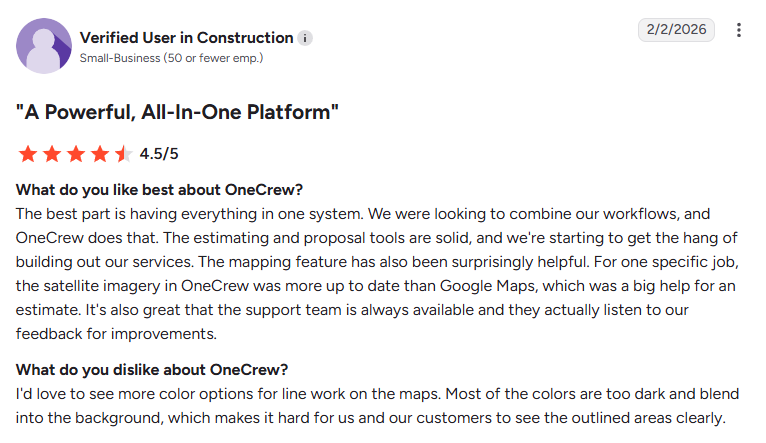
- Easy to use with excellent customer support: One reviewer said OneCrew fit easily into their existing workflow without forcing process changes. They also praised its ease of use, organized scheduling, and responsive customer support. (Matt M., G2, February 10, 2026)
- Strong estimating capabilities with room to improve scheduling: Another reviewer praised OneCrew's industry-specific estimating tools, professional-looking proposals, detailed job sheets, and built-in analytics for tracking profitability. They noted that the scheduling calendar could be easier to navigate and display more information at a glance. (Tim J., G2, March 12, 2026)
Pricing
OneCrew uses seat-based pricing on annual contracts, with the exact figure set by how many office and field users you need. There's no published rate card, so you'll get numbers on a demo call.
Bottom line
For a paving contractor already running QuickBooks, OneCrew covers the operational side that QuickBooks was never designed for, from takeoff through final invoice. A plumbing or HVAC shop should look at ServiceTitan or Housecall Pro instead.
2. Jobber: Best for Small Service Crews That Want One Place for Quotes and Schedules
What it does: Jobber runs quoting, scheduling, dispatch, and invoicing for small field teams, then syncs finished invoices and payments into QuickBooks Online.
Best for: Service crews of one to fifteen people doing repeat visits, maintenance calls, and small jobs.
Jobber is the tool most contractors land on first, and for recurring service work it earns that. The drag-and-drop calendar took about ten minutes to learn, routing cut a good chunk of windshield time off my test week, and the client hub cut down on back-and-forth calls.
Where it strained was the change order on day six. Jobber treats work as visits instead of phases, so a mid-job scope change meant rebuilding the schedule by hand and reissuing the work orders attached to it.
Key features
- Drag-and-drop scheduling with routing: Move a crew to a different day and Jobber re-optimizes the route, then notifies the team
- QuickBooks Online sync: Pushes invoices, payments, and clients into QuickBooks so your bookkeeper stops rekeying them
- Automatic time tracking: Geofenced timers start and stop when crews arrive and leave, which tightens up payroll prep
- Job costing: Tracks materials, labor, and expenses against a job so you can see margin before the invoice goes out
- Client hub: Customers approve quotes, check appointment details, and pay invoices from one link
Jobber pros
- Fast to set up, with a 14-day free trial on the Grow plan and no credit card required
- Published pricing you can compare without a sales call, which is rarer than it should be
- Strong mobile app in English and Spanish, useful when part of your crew doesn't work in English
Jobber cons
- QuickBooks Online sync doesn't exist on the entry plan, so the real starting price sits well above the headline
- Per-user fees at $29 a month each add up quickly on a 20-person crew
- Quotes lean on optional markups, and disciplined contractors price off margin instead
What real users are saying
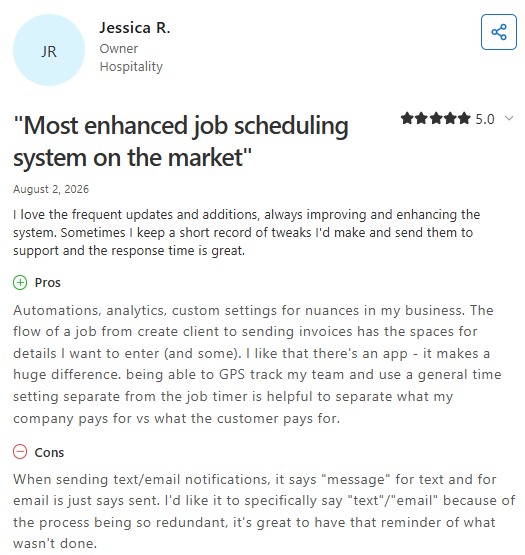
- Keeps jobs organized from start to finish: One reviewer appreciated Jobber's ability to manage the entire job lifecycle in one platform, making it easy for team members to see what tasks need to be completed. They suggested adding automatic saving and more flexible quote management options. (Brandon K., Capterra, July 31, 2026)
- Makes client communication easier, but the app could be more reliable: Another reviewer highlighted Jobber's photo-sharing and client communication features, saying they would highly recommend the platform. They noted that the mobile app can be slower than the browser version and occasionally experiences downtime. (Janelle B., Capterra, July 31, 2026)
Pricing
Jobber lists four plans on its pricing page, with annual prepaid rates well below month-to-month. Core runs $29 a month for one user annually, or $49 month-to-month.
QuickBooks Online sync starts with Connect, at $99/month (billed annually) for one user. Grow costs $149/month (billed annually) for one user, and Plus starts at $399/month (billed annually) for five users.
Every extra user beyond your bundle costs $29 a month, and teams over 15 users go through sales.
Bottom line
If you run service calls and want your invoices in QuickBooks without a data-entry shift on Fridays, Jobber is hard to beat at this price. Budget for the Connect tier, though, because Core alone won't get you the sync you came for.
3. Housecall Pro: Best for Appointment-Based Home Service Teams

What it does: Housecall Pro schedules and dispatches home service appointments, then syncs your QuickBooks Online data so invoicing and books line up.
Best for: HVAC, plumbing, electrical, and cleaning teams that book by the appointment and dispatch by the day.
The dispatch board is the reason to look here. Assigning eight jobs across four techs took a couple of minutes, and employee GPS tracking showed me who sat closest to the next call without a phone tree.
Housecall Pro also handles the messy middle of service work well. Photo reports, annotations, and checklists keep a tech from skipping a step. Multi-day, multi-crew production work is where it runs out of room.
Key features
- Real-time dispatch: Reassign a job and the tech sees it before they've left the last driveway
- Routes and route optimization: Group and sequence a day's jobs, with one-click reordering on the Max plan
- QuickBooks Online sync: Imports existing QuickBooks data and keeps invoicing aligned
- Employee GPS tracking: Locates techs by phone GPS with no extra hardware
- Price book and job costing: Keeps service pricing current and reports cost against each job
Housecall Pro pros
- 14-day free trial with full Max features and no credit card required
- No long-term contracts, so you can leave at the end of a billing period
Housecall Pro cons
- QuickBooks Online sync requires Essentials, more than double the Basic price
- Some users report reconciliation headaches when setup goes wrong, so budget time for it
- Built around service calls, which makes phase-based paving or concrete work an awkward fit
What real users are saying
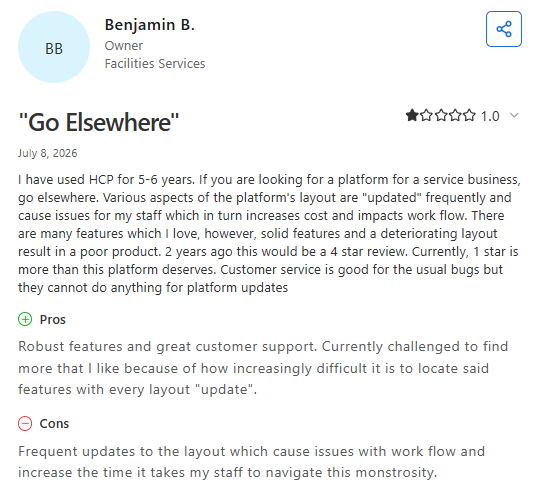
- Easy to use for scheduling, invoicing, and payments: One reviewer praised Housecall Pro for helping service businesses manage daily operations, highlighting its invoicing, payment scheduling, strong security, and responsive customer support. They said the platform is reliable, easy to use, and offers good value. (Brooks L., Capterra, June 3, 2026)
- Mobile experience is smooth, but customer service and payment handling drew criticism: Another reviewer liked the mobile interface but reported serious frustrations with customer support responsiveness and payment processing, saying withheld funds and unresolved support requests negatively affected their business. (Damian C., Capterra, June 4, 2026)
Pricing
Housecall Pro publishes three tiers on its pricing page. Basic covers one user at $79/month.
Essentials is the first plan with QuickBooks Online sync, and it includes five users at $299/month. Max includes 8 users at $649/month, with additional users at $75/month each.
Bottom line
Housecall Pro suits a shop that lives on scheduled appointments and wants a dispatch board its office staff can run on day one. Skip it if your jobs span weeks and put more than one crew on a site.
4. Knowify: Best for the Deepest Two-Way QuickBooks Sync

What it does: Knowify handles construction project management, scheduling, and billing with a two-way QuickBooks sync that covers far more than invoices.
Best for: Specialty trade contractors running fixed-price and time-and-materials work who already keep their books in QuickBooks.
Of everything on this list, Knowify has the closest relationship with QuickBooks. Customers, vendors, products, employees, purchases, expenses, invoices, and time all move in both directions, and on QuickBooks Online Plus or Advanced, even projects sync across.
Scheduling covers employees, subcontractors, and equipment on one drag-and-drop board, which helped during my test week when I had to book a roller and a crew against the same phase. The catch is that the features contractors care about most sit on the second tier.
Key features
- Drag-and-drop scheduling: Books employees, subs, and equipment together, with a map view of each employee's last check-in
- Two-way QuickBooks Online sync: Comes on every plan and covers customers, vendors, purchases, expenses, invoices, and time
- AIA pay applications: Generates G702 and G703 forms with schedule of values and retainage tracking
- Job costing: Assigns costs to the right project, phase, and category automatically on Advanced and up
- Time tracking to payroll: Approved time flows straight into QuickBooks Online Payroll timesheets
Knowify pros
- The QuickBooks connection is the most complete in this roundup, with no double entry on either side
- Scheduling and the mobile app come on the entry plan, unlike several competitors here
- Progress billing and AIA workflows come standard, which saves paving subs on public work real hours
Knowify cons
- Job costing, project budgets, and cost-plus contracts all require Advanced at $329 a month
- Only the Enterprise tier gets QuickBooks Desktop sync
- Designed around electrical, plumbing, HVAC, and concrete workflows rather than paving production and takeoff
What real users are saying
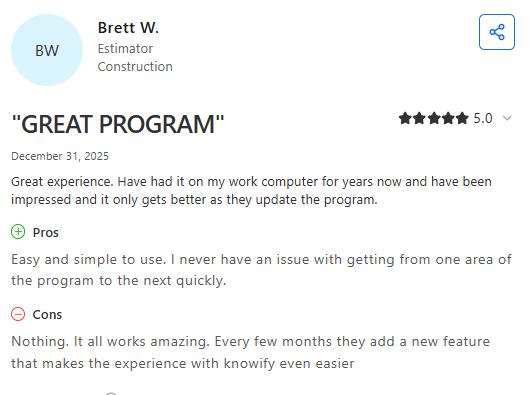
- Simple to use with strong job costing features: One reviewer said Knowify effectively tracks job costs, budgets, and invoices, providing clear visibility into project finances. They noted that while the platform is solid overall, some features require extra setup and the interface can feel dated for new users. (Josh W., Capterra, December 22, 2025)
- Streamlines invoicing and proposals, but template customization is limited: Another reviewer praised Knowify's easy navigation, workflow integration, invoicing, service order management, and proposal tools. They said a drawback is the inability to edit proposal templates or manage multiple templates without contacting Knowify's support team. (Marie S., Capterra, November 7, 2025)
Pricing
Knowify's pricing page shows two published tiers plus a custom option. Core costs $99 a month billed annually or $149 monthly, and includes one user. Advanced costs $329 a month annually or $399 monthly, and includes ten users.
Extra users run $29 a month each. Enterprise adds unlimited users, inventory, and QuickBooks Desktop through a sales conversation. Service Pro dispatching is a $99 a month add-on annually, and equipment tracking runs $25 per vehicle a month.
Bottom line
I'd point any trade contractor who wants one system for QuickBooks and job costing straight at Knowify's Advanced plan. Price it honestly, though, since Core is a billing tool with a schedule attached rather than a full project platform.
5. QuickBooks Time: Best for Teams That Want Scheduling Inside QuickBooks
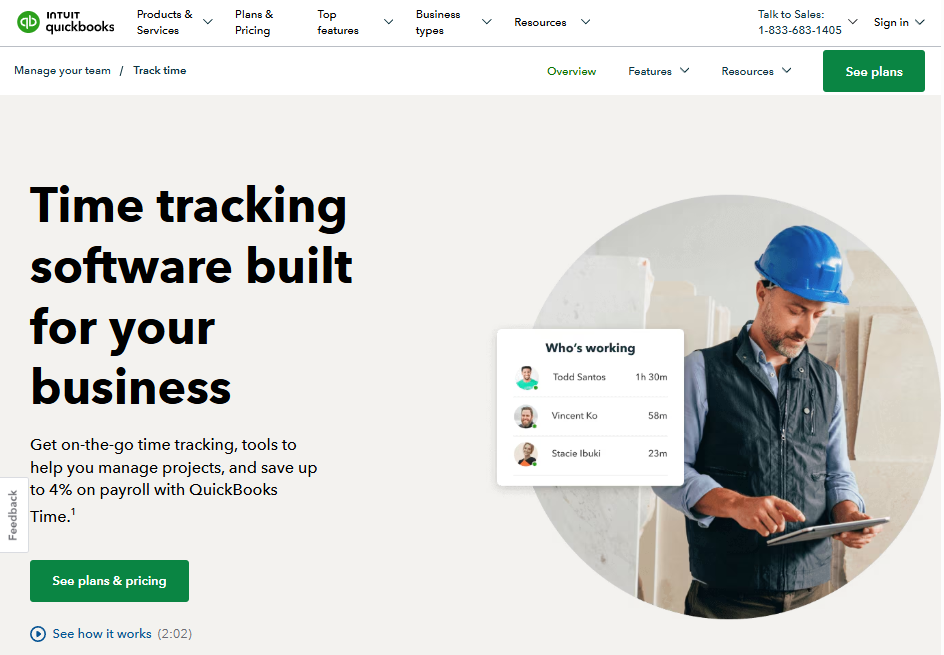
What it does: QuickBooks Time schedules shifts and jobs and tracks time inside the Intuit ecosystem, so hours land in QuickBooks with nothing to import.
Best for: Teams already on QuickBooks Online who want crew hours and simple job schedules without adding another vendor.
There's an obvious appeal to keeping everything with Intuit, and for time and basic scheduling it works. Scheduling by job or shift comes on every plan, the kiosk covers crews that share one device at the shop, and hours flow to payroll and invoicing without a connector to babysit.
What you give up is everything around the schedule. No estimating, no proposals, no dispatch board, no customer portal.
Key features
- Scheduling by job or shift: Build schedules and share them with the crew, included on both plans
- Workforce mobile app: Crews clock in, submit, and approve time from a phone
- GPS and geofencing: Elite adds location reminders and mileage tracking on the clock
- Project estimates versus actuals: Elite compares budgeted hours to actual hours worked
- Time kiosk: Lets a crew clock in and out on a shared device on site
QuickBooks Time pros
- Nothing to configure, since the data already lives in the Intuit ecosystem
- Predictable pricing you can calculate to the dollar before you buy
- Unlimited support included in the base fee, with a 30-day free trial
QuickBooks Time cons
- You need a QuickBooks Online account, so the real cost stacks on top of your accounting subscription
- No estimating, invoicing, dispatch, or customer-facing tools
- Schedules cover shifts and jobs rather than phases with dependencies, so multi-week production work needs a second tool
What real users are saying
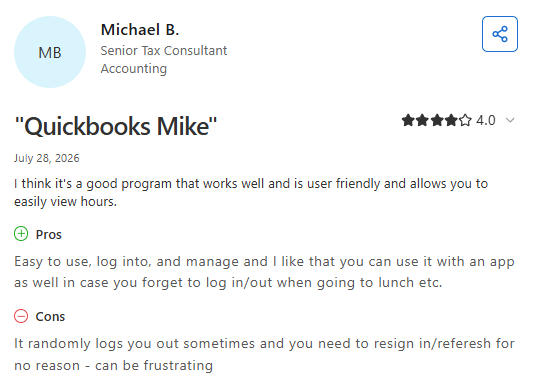
- Helpful for tracking time once you learn it: One reviewer said QuickBooks Time is very useful for small businesses after the initial learning curve. They appreciated its accounting features and found the available online resources helpful, but wished the interface made advanced features easier to discover and use. (JD S., Capterra, July 28, 2026)
- Scheduling and payroll tools could be stronger: Another reviewer liked using QuickBooks Time to manage employee scheduling and payroll across current and former employees. However, they felt the payroll capabilities could be expanded to provide more versatile employee pay management. (Juan S., Capterra, July 25, 2026)
Pricing
Intuit lists two tiers on the QuickBooks Time pricing page. Time Premium runs a $20 monthly base fee plus $10 per user a month, and Time Elite runs $40 a month plus $12 per user.
Each base fee covers one admin, and you'll need a QuickBooks Online account to use either one. For a ten-person crew on Premium, that lands at $120 a month before your QuickBooks subscription.
Bottom line
QuickBooks Time is the cheapest honest answer if hours are your only problem. Anything involving bids, proposals, or crew coordination will send you looking for a second platform within a season.
6. Connecteam: Best for Hourly Crews Watching Software Spend
What it does: Connecteam handles mobile shift and job scheduling with a built-in time clock, and connects to QuickBooks so approved timesheets reach payroll.
Best for: Hourly crews of 10 to 30 people who need schedules on phones and don't need estimating or invoicing.
The free tier is the headline. Up to 10 users get every feature with no time limit, which is a genuinely unusual offer in this category. Above that, Connecteam prices by hub, and the Operations Hub holds the time clock and job scheduling.
Setup took under an hour, and the crew-facing app is the most approachable of anything I tested. That matters when half your field team would rather not deal with an app at all.
Key features
- Job scheduling with open shifts: Publish shifts, let crew claim open ones, and track confirm, check-in, and complete status
- GPS time clock: Real-time clock in and out with location stamps on every entry
- QuickBooks integration: Sends payroll-ready timesheets so nobody retypes hours
- Repeating shifts and templates: Advanced adds weekly templates and shift replacements
- Forms and checklists: Unlimited forms for safety checks and daily reports on paid plans
Connecteam pros
- Free Small Business Plan covers all features for up to ten users, with no expiration
- Flat pricing for the first 30 users keeps costs steady as you add seasonal crew
- Designed for deskless teams, so adoption in the field goes smoother than with office-first tools
Connecteam cons
- Hub-based pricing multiplies fast, since Connecteam bills scheduling, communication, and HR separately
- No estimating, invoicing, or job costing, so it sits beside your other systems rather than replacing them
- Geofencing and repeating shifts both require the Advanced tier
- The QuickBooks connection covers timesheets and payroll, and leaves customer billing alone
What real users are saying
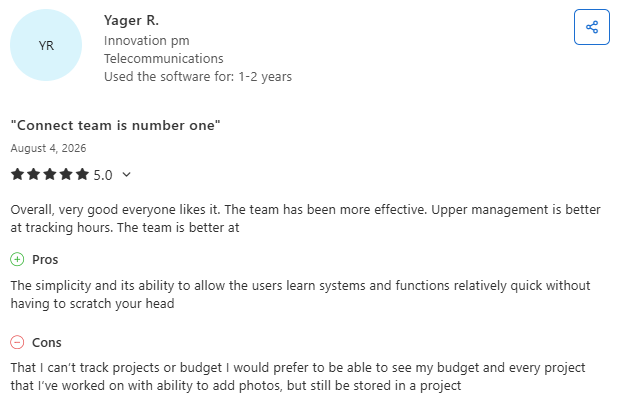
- Keeps teams connected with real-time communication: One reviewer praised Connecteam for making employee communication easier through text notifications and real-time updates, helping teams stay informed and respond quickly. They also found it useful for tracking employee time and documentation, though they wished the search function made older conversations easier to find. (Marsha W., Capterra, July 28, 2026)
- Flexible scheduling but limited admin controls: Another reviewer liked how Connecteam simplifies scheduling by letting managers copy weekly schedules and block off unavailable days. However, they wanted support for copying bi-weekly or monthly schedules and better visibility into employee conversations from an administrator's perspective. (Cassie C., Capterra, July 28, 2026)
Pricing
Connecteam's pricing page prices each hub separately. In the Operations Hub, Basic costs $29 a month billed yearly or $35 monthly for the first 30 users. Advanced runs $49 a month yearly or $59 monthly, and Expert runs $99 a month yearly or $119 monthly.
Past 30 users, extra seats cost between $0.80 and $4.20/month depending on tier. Enterprise pricing is custom.
Bottom line
Connecteam gives a 25-person crew real scheduling for less than most competitors charge for one seat. Treat it as a workforce tool, since the money side of your business stays wherever it already lives.
7. ServiceTitan: Best for Large Technician-Based Service Businesses

What it does: ServiceTitan runs dispatch, scheduling, call booking, and invoicing for large service operations, with near real-time syncs to QuickBooks Online and QuickBooks Desktop.
Best for: HVAC, plumbing, electrical, and refrigeration companies with 20 or more technicians and a full office staff.
At scale, ServiceTitan does things nothing else here attempts. Call booking ties the phone to the dispatch board, the pricebook keeps 30 technicians quoting the same numbers, and the accounting integrations reach past QuickBooks into Sage Intacct, NetSuite, and Foundation.
That depth comes with weight. Implementation is a project, not a weekend, and the whole system assumes service and replacement work rather than multi-phase construction.
Key features
- Dispatch board: Drag-and-drop fleet and technician management designed for high job volume
- Call booking: Records and routes inbound calls, tying every booked job back to its source
- Pricebook: Standardizes pricing across a large technician team
- Mobile estimates: Technicians build and present options in the field
- QuickBooks Online and Desktop syncs: Transactions move over in near real time, with a CSV path for other systems
ServiceTitan pros
- Reporting depth that larger operations genuinely need for technician and marketing performance
- Accounting integrations cover both QuickBooks versions plus several construction ERPs
ServiceTitan cons
- No published pricing, and per-technician rates mean costs climb with every hire
- Implementation and configuration take months, not days
- Designed for service and replacement work, which makes it a poor match for project-based paving
What real users are saying
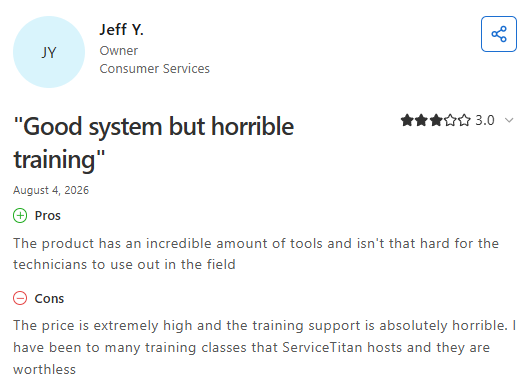
- Comprehensive platform that continues to improve: One reviewer said ServiceTitan combines office and field operations in a user-friendly platform with strong permission controls and multi-factor authentication. They noted that the platform keeps improving over time but would prefer accounting features to be built into the same system instead of requiring a separate integration. (Kaley M., Capterra, July 30, 2026)
- Serious concerns about billing and customer support: Another reviewer criticized ServiceTitan for poor communication with management, difficulties resolving billing issues, and problems canceling automatic payments. They also described a frustrating customer support experience and said they were unable to get satisfactory assistance with their account. (Lisa O., Capterra, July 29, 2026)
Pricing
ServiceTitan doesn't publish rates. Its pricing page lists three packages, Starter, Essentials, and The Works, all on per-technician pricing with a "Request Pricing" button instead of a number.
You'll need a demo to get a figure, and any dollar amount you find on a review site is someone's guess rather than a published rate.
Bottom line
ServiceTitan is the right call for a big service business with dedicated dispatchers and a CSR team. Project-based contractors will spend a lot bending a service platform into something it was never drawn up to do.
8. Buildertrend: Best for Homebuilders and Remodelers
What it does: Buildertrend manages residential construction schedules, budgets, and client communication, with a 2-way QuickBooks sync on every plan.
Best for: Home builders, remodelers, and specialty contractors running five or more projects a year with homeowner clients.
Buildertrend's schedule handles what most appointment-based tools can't: linked phases, shifting dependencies, and a client portal that keeps homeowners from calling you for updates.
The QuickBooks connection genuinely runs both ways, pushing jobs, clients, subs, vendors, bills, invoices, and time clock entries out, then pulling estimates, payments, and budget actuals back in. Unlimited users on every plan beats per-seat competitors outright.
Key features
- Phase scheduling: Build a schedule with dependencies, then shift dates and watch downstream work follow
- Two-way QuickBooks sync: Works with all plans and covers QuickBooks Online, Intuit Enterprise Suite, and QuickBooks Desktop
- Daily logs: Auto-generated summaries of who was on site, weather, and progress
- Client and sub portals: Homeowners track progress and approve selections, subs get their assignments
- Time clock: Field hours push to QuickBooks for payroll
Buildertrend pros
- Unlimited users and unlimited projects on every plan, with no per-seat math
- The QuickBooks sync sits on every tier, unlike Jobber and Housecall Pro
- 10% off when you prepay annually
Buildertrend cons
- Quotes scale with your annual construction volume, meaning a bigger contractor pays more for identical features
- Aimed at residential builders working with homeowners rather than commercial paving crews bidding property managers
What real users are saying
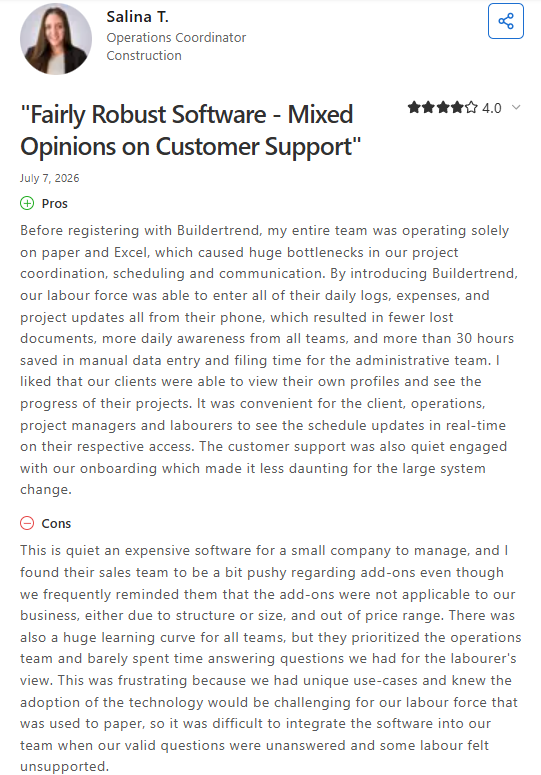
- Centralizes construction project management: One reviewer praised Buildertrend for bringing scheduling, budgeting, communication, document sharing, and project tracking into a single platform, making construction projects easier to organize. They noted there is a learning curve and that advanced features can make the platform expensive for smaller teams. (Nikki C., Capterra, May 5, 2026)
- Concerns about contracts and customer treatment: Another reviewer criticized Buildertrend for its handling of billing and contract disputes, claiming the company prioritized enforcing contract terms over supporting customers facing financial difficulties. They described the experience as frustrating and advised other contractors to review the terms carefully before committing. (Ricardo D., Capterra, May 1, 2026)
Pricing
Buildertrend now runs on custom quotes. Its pricing page shows no dollar figures at all, only a three-step form asking for your builder type, your average annual construction volume across eleven brackets from under $500,000 to $31 million and up, and your contact details.
Every quote includes unlimited users, and annual prepayment takes 10% off whatever number you land on.
Bottom line
If you build or remodel homes and want one system for schedules, budgets, and client updates, Buildertrend is a strong pick with the best QuickBooks coverage per dollar here. Paving contractors will find the whole model pointed at a different customer.
9. Workyard: Best for Crews Where Payroll Accuracy Is the Real Problem
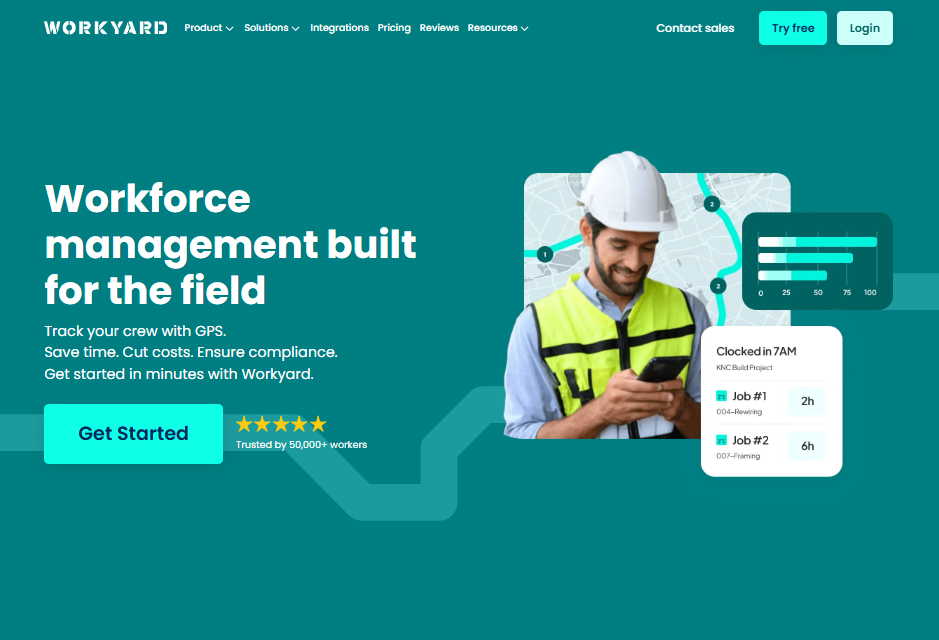
What it does: Workyard tracks GPS-verified crew hours and schedules work from office to field, then exports time and costs to QuickBooks Online or Desktop in one click.
Best for: Construction crews losing money to rounded-up time cards and guessed mileage.
Workyard is narrower than most tools here, and that's the point. It measures where crews went, how long they stayed, and what it cost, down to arrival and exit times by address.
Contractors who suspect they're paying for a 7:00 start that lands at 7:18 on the ground will have their answer inside a week. Scheduling is capable but secondary, and it only shows up on the Pro plan.
Key features
- Office-to-field scheduling: Assign projects and work orders crews can see on their phones, on Pro and up
- Precise GPS tracking: Reports addresses visited, time on site, and driving trips between them
- Cost codes and labor cost reporting: Time posts to projects and cost codes, with costs calculated on clock out
- One-click payroll export: Sends time to QuickBooks Online, QuickBooks Desktop, ADP, Gusto, and others
- Accounting sync: Imports jobs and cost codes, and exports project time for invoicing and job cost reporting
Workyard pros
- Daily usage billing means you pay for active crew only, with credits for anyone deactivated mid-cycle
- The most precise location data of anything on this list, with no geofences to set up first
- 14-day free trial with no credit card
Workyard cons
- Scheduling requires the Pro plan at double the Starter rate
- The $50 monthly company base fee makes small crews pay a premium per head
- No estimating, proposals, invoicing, or customer portal, so it works beside another platform rather than replacing one
What real users are saying
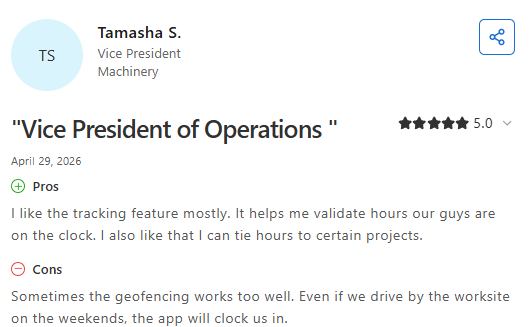
- Makes employee time and location tracking easy: One reviewer praised Workyard for its intuitive interface and geofencing features, saying it helped the company better manage employee time and location while providing valuable workforce insights. They noted the paid version is somewhat expensive but still worth the investment. (Kristopher P., Capterra, July 10, 2025)
- Simple to use across multiple job sites: Another reviewer highlighted Workyard's ease of use and its ability to monitor workers and locations across multiple sites, making daily task reviews straightforward. They said the platform was easy to teach to employees and had no major drawbacks during their experience. (Ricky B., Capterra, April 29, 2026)
Pricing
Workyard's pricing page lists plans starting at $6 per user a month when billed annually.
Bottom line
Workyard earns its keep when payroll leakage is costing you more than the subscription, which happens faster than most owners think. Anyone who needs bids and invoices in the same place should look further up this list.
Which Scheduling Tool Should You Choose?
The right answer comes down to one question: are you scheduling appointments or scheduling projects? Almost every disappointed buyer I've talked to picked a tool designed for the other one.
Choose OneCrew if you …
- Manage multiple crews and complex commercial projects
- Need complete visibility from initial estimate through final invoice
- Want a dedicated paving platform rather than generic software for paving contractors
Choose Jobber or Housecall Pro if you …
- Book work as appointments and visits rather than multi-week phases
- Send one or two people per job and want the office to dispatch by the day
- Want published pricing and a free trial before talking to anyone
Choose Knowify or Buildertrend if you …
- Need the fullest two-way QuickBooks sync, including bills, expenses, and time
- Run fixed-price or AIA-billed work with progress billing and retainage
- Want a client portal for homeowners or property managers
Choose QuickBooks Time, Connecteam, or Workyard if you …
- Only need hours, shifts, and payroll accuracy right now
- Already have estimating and invoicing handled somewhere else
- Want the lowest possible monthly cost to get crews off paper time cards
Skip this category entirely if …
- You run three or fewer jobs a month, and a shared calendar still works
- Your bookkeeper handles under 20 invoices a month, where the sync saves less than the subscription costs
- Nobody on your team will own setup, since an unconfigured platform is worse than the spreadsheet it replaced
Run Schedules, Crews, and Invoices in One Place
OneCrew is a platform built specifically for project-based paving and concrete contractors. It connects every step of the job to the QuickBooks sync at the end without requiring you to retype anything along the way. Here's what it covers:
- Build estimates from PDFs or aerial maps with paving-specific calculators built in: OneCrew's estimating tools let you price jobs from plan sets or aerial imagery with configurable calculators for labor, materials, equipment, and subs.
- Schedule crews to the job phases your estimate already accounts for: OneCrew's scheduling feature assigns crews and roles to specific project phases so your office and field stay aligned across pre-construction, production, and billing.
- Capture field hours and production data before they get reconstructed from memory: The field management tools push mobile work orders and schedules to crew phones and pull time and job data back to the office in real time.
- Get proposals signed and payment terms documented before anyone mobilizes: OneCrew's proposals feature generates professional, branded proposals directly from your estimate.
- Track every property manager and repeat account without a separate CRM: OneCrew's CRM keeps every lead, conversation, and project history in one place.
- Sync invoicing and payment data to QuickBooks without double entry: OneCrew's invoicing tools generate invoices from the line items already in the platform and sync invoicing and payment data with QuickBooks Online.
Protecting margin starts with knowing what a job costs while you can still do something about it. You need one platform that connects scheduling, estimating, field management, and billing with a clean QuickBooks sync at the end. Book a free demo and see how it works for your operation.
FAQs
1. What is the best scheduling software that integrates with QuickBooks?
The best scheduling software that integrates with QuickBooks depends on the work you sell. Jobber wins for small service crews at $99 a month on the Connect plan, Knowify wins for the deepest two-way sync starting at $99 a month, and OneCrew fits project-based paving contractors who need estimating and phase scheduling alongside QuickBooks invoicing.
2. Does QuickBooks have built-in scheduling?
Yes, QuickBooks has built-in scheduling through QuickBooks Time, which creates schedules by job or shift and shares them with your crew. Time Premium costs $20 a month plus $10 per user, and it requires a QuickBooks Online account. It covers hours and shifts rather than estimating, dispatch, or customer billing.
3. Which plan do I need for the QuickBooks sync to work?
The QuickBooks sync usually requires a mid-tier plan, not the cheapest one. Jobber unlocks it on Connect, Housecall Pro on Essentials, and Knowify and Buildertrend include it on every plan. Check the tier before you budget, because the gap between an entry plan and the first plan with sync often doubles your monthly cost.
4. Can scheduling software replace QuickBooks?
No, scheduling software can't replace QuickBooks. These platforms run operations like bids, schedules, field data, and invoicing, then pass financial records to QuickBooks for reconciliation, payroll, and tax work. Most contractors run both, with the scheduling platform as the daily workspace and QuickBooks as the ledger.
5. Is scheduling software worth it for a small paving crew?
Scheduling software is worth it for a small paving crew once lost jobs and payroll errors cost more than the subscription. Two forgotten follow-ups on a $40,000 parking lot bid outweigh a year of software. Crews running three or fewer jobs a month can usually wait.